Docs-Products overview page
Introduction
The default page for https://thankful-water-06a6c0b03.5.azurestaticapps.net was earlier a standard Markdown page listing all other pages in the Docs-Products repo. It was meant to give an overview of the content there, as well as providing easy access to individual pages and links to them.
It didn't turn out so well. Docusaurus is very picky about links, and having a broken link that doesn't point to an actual page in the repo causes the Build (what GitHub does before publishing) to stop and spit out a big chunk of obscure error messages.
As pages often are renamed or moved, this problem popped up more times than should be accepted (zero). But an index page is still a handy thing to have. The problem is, how do you make a page with links that can be broken without Docusaurus complaining? There are no exceptions that can be made for specific pages.
The new index page /static/LinkPage.html works a bit differently. It doesn't exist as such, looking at the code it only has a few HTML elements. Instead, the page is created using JavaScript every time it loads. There are no links in the actual page for Docusaurus to check for errors at build time, they are listed in a separate file: /static/IndexPageList.js.
Purpose
As mentioned, the index page is used to get an overview of the site content and provide easy access to individual pages. Getting the actual link to a page isn't always easy since we sometimes use cross-repo linking via proxy pages and also use page aliases that are reflected in the URL.
If a customer/partner asks for a link to a section or page it will be easier to find it there. It's also often easier to check pages for errors or layout inconsistencies, especially if they are unpublished. The index page shows up as default when previewing with "npm run start" which makes it easy to access.
Usage
Under the folder /docs/user-manual in Docs-Products there are a number of subfolders, each corresponding to a separate product or grouping of pages. These products/groups have their own table that lists the folder content:
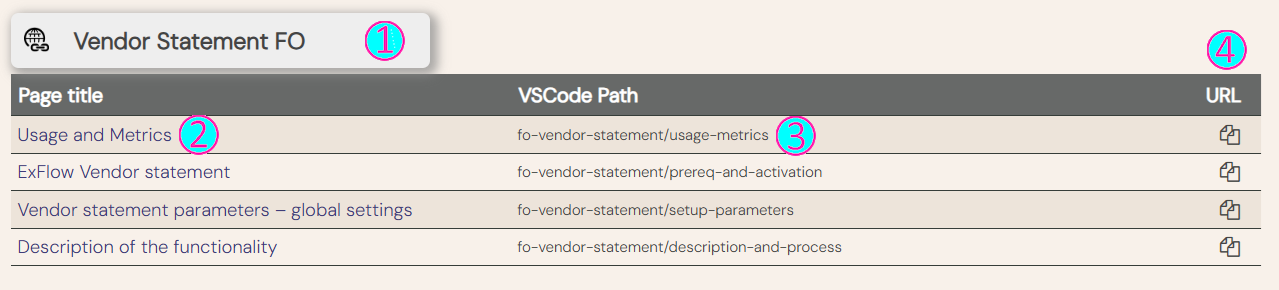
- The table header shows the name of the product/section. It's clickable and links to the main page of those.
- Page title. It's also clickable and has a direct link to the page.
- "VS Code Path" shows where the page can be found in the directory tree in Visual Studio Code.
- Link copy function, clicking the icon will copy the page link from (2) to the clipboard.
Adding pages
New content to Docs-Products doesn't have to be added to the index, it's just for convenience. Some pages might also need to be hidden and only be reachable by a direct URL.
If it would benefit to add new pages, it can be done by editing the file /static/IndexPageList.js in VS Code. It contains only a JavaScript array with page names and where to find them. Each grouping of pages has its own section, for example the "Vendor Statement FO":

The first line differs from the rest, it's what shows up in the table header. There are three parts that have to be added:
| name | The text of the table's header |
| url | URL address to the page that should show when the header is clicked |
| baseURL | Address to the subfolder under /docs/user-manual in VS Code. Example: To get to the Release Notes page for the CO₂ section we use the URL https://thankful-water-06a6c0b03.5.azurestaticapps.net/user-manual/CO2/release-notes. But that's a bit unwieldy to use when we populate the addresses to each of the pages in the table. We already know that we're working in the /docs/user-manual/CO2 folder, we just have to know that folder location. That is: https://thankful-water-06a6c0b03.5.azurestaticapps.net/user-manual |
The rest of the lines describe each separate page and have only two parts:
| name | Title of the page |
| url | Path of the page in VS Code, starting at the section subfolder. In the example above, the Release Notes gets the value CO2/release-notes |
Note that leading numbers in file names must be removed. The full name of the Release Notes page in VS Code is 5-release-notes.md. When adding it to IndexPageList.html it should look like: release-notes (the file ending .md shouldn't be included in links, but it can be left here. It will be automatically removed when the page is created).
The easiest way to create a new section is to just copy an existing one and change the values there.